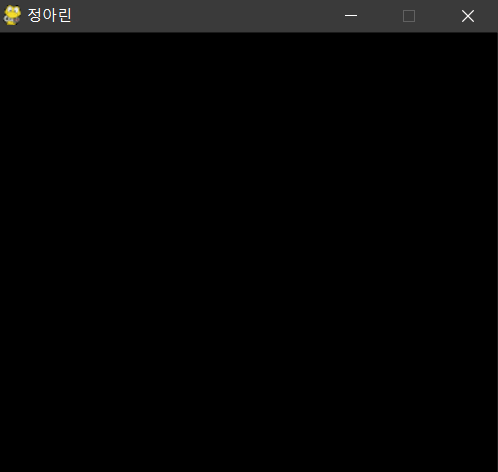
1. 윈도우 창 만들기 (기본적인 명령문 포함)

import pygame #pygame 모듈을 불러와라
pygame.init #pygame을 시작하는 명령문 (ex.%matloplib inline)

ourScreen = pygame.display.set_mode((1400,2000))
#우리의 화면을 ourScreen이라는 변수로 지정한 뒤 뒤에 크기를 지정해 줌
pygame.display.set_caption('정아린') #내가 띄울 윈도우 창의 이름을 지정하는 것

#이벤트 명령 지정
finish = False:
  for event in pygame.event.get():
    if event.type == pygame.QUIT:
      finish = True
    pygame.display.flip()
#update를 하는 명령문, update라고 해도 되는데 여기서는 그냥 flip이라고 함 (왜?) 책을 주르륵 넘기는거 생각!
2. 게임 루프 개념 구현하기
1) 기본적 원리

① Handle events : 내가 이벤트를 만들어서 명령문을 넣어줌 (ex. 몬스터에 닿았을 때)
② Update game state : 그 게임을 업데이트 해주어야 함 (그래야 바뀐것을 확인해야 하니까) (ex.플레이어의 pH가 낮아짐)
③ Draw screen : 화면에 띄워라 (ex. 플레이어가 화면을 통해 볼 수 있음)
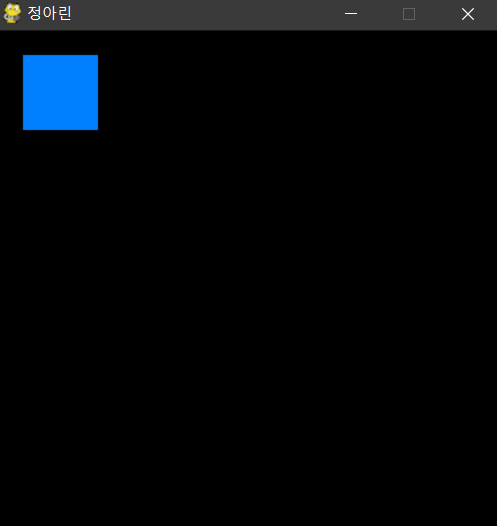
2) 사각형 만들기

import pygame
pygame.init

ourScreen = pygame.display.set_mode((400,300))
pygame.display.set_caption('정아린')

finish = False:
  for event in pygame.event.get():
    if event.type == pygame.QUIT:
      finish = True
  pygame.draw.rect(ourScreen, (R, G, B), pygame.Rect(20, 20, 60, 60))
  #우리 화면에 rect(사각형)그려라. 그리고 RGB값을 통해 배경색을 변경해라(저기엔 0~255까지의 수를 넣어주면 됨)
  #사각형의 위치 변경 : 앞의 두 좌표 (단위는 pixel), 사각형의 크기 변경 : 뒤에 두 좌표
  #(255, 255, 255는 흰색/ 0, 0, 0은 검은색임)
  pygame.display.flip()
3) 스페이스바를 누르면 사각형의 색이 변경되도록 하기

import pygame
pygame.init

ourScreen = pygame.display.set_mode((400,300))
pygame.display.set_caption('정아린')

finish = False:
colorBlue = True #화면 색을 RGB가 아닌 변수로 지정
while not finish:
  for event in pygame.event.get():
    if event.type == pygame.QUIT:
      finish = True
  if event.type == pygame.KEYDOWN and event.key == pygame.K_SPACE:
  #이벤트 지정 : keydown, 즉 키보드 나타내는 모듈에서 스페이스 키를 누를 때
    colorBlue = not colorBlue #이벤트가 일어나면 그 원상태 유지가 되지 않음
  if colorBlue: color = (0, 128, 255) #조건문 사용 : colorBlue의 원상태의 색 지정
  else : color = (255, 255, 255) #아니라면 이 색으로 변경될 것 (즉 이벤트 발생 시)
  pygame.draw.rect(ourScreen, (R, G, B), pygame.Rect(20, 20, 60, 60))
  pygame.display.flip()
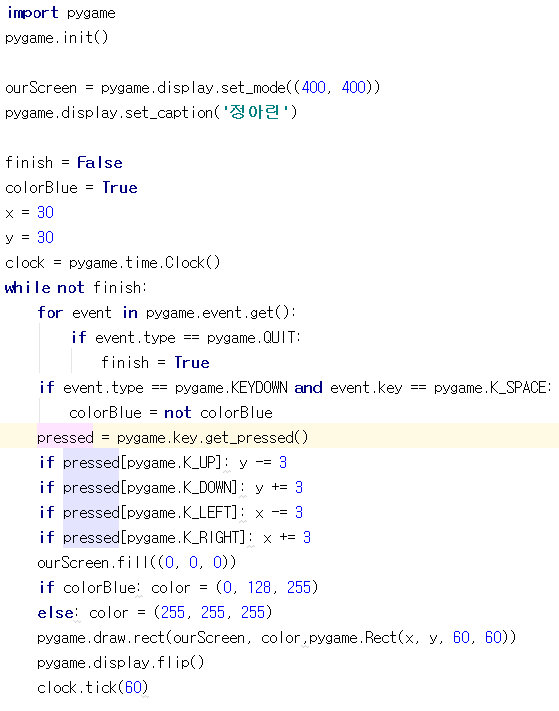
4) 사각형이 방향키에 따라 움직이도록 하기
import pygame
pygame.init

ourScreen = pygame.display.set_mode((400,300))
pygame.display.set_caption('정아린')

finish = False:
colorBlue = True

x = 30
y = 30 #사각형의 처음 위치 지정
clock = pygame.time.Clock() #시간 관련 함수 사용할 때 항상 clock사용. 초 당 프레임 지정 가능

while not finish:
  for event in pygame.event.get():
    if event.type == pygame.QUIT:
      finish = True
  if event.type == pygame.KEYDOWN and event.key == pygame.K_SPACE:
    colorBlue = not colorBlue

    pressed = pygame.key.get_pressed()
  if pressed[pygame.K_UP]: y -= 3
  if pressed[pygame.K_DOWN]: y += 3
  if pressed[pygame.K_LEFT]: x -= 3
  if pressed[pygame.K_RIGHT]: x += 3
  #키보드에 따라 위치가 변하도록 각각 지정

  ourScreen.fill((0, 0, 0))
  #사각형에 따라 움직여야 하기 때문에 기존 사각형을 지워야 함

  if colorBlue: color = (0, 128, 255)
  else : color = (255, 255, 255)
  pygame.draw.rect(ourScreen, (R, G, B), pygame.Rect(x, y, 60, 60))
  #사각형의 위치를 x와 y라는 변수로 설정. 멈춰있는 것이 아니라 연속적으로 움직여야 하기 때문
  pygame.display.flip()
  clock.tick(60) #기존 속도가 너무 빠르기 때문에 초당 60프레임으로 지정해주는 것
'pygame > 01. 기본적인 실행과 입력' 카테고리의 다른 글
| 3. 창에 이미지 넣기 / 소리 넣기 (0) | 2021.02.14 |
|---|---|
| 1. pygame 다운 및 실행 방법 (0) | 2021.02.13 |